

Your First App with AI: Build a Portfolio Site in 30 Minutes
Welcome back to Vibe Coding 101 — Episode 2. As we covered in our previous guide, What Is Vibe Coding? The Complete Beginner's Guide, the idea is to pair human intent with AI speed so you ship real projects faster. Today you'll build a clean personal portfolio website from scratch in about 30 minutes using an AI coding assistant.
This is for absolute beginners. You don't need prior HTML/CSS experience — just a code editor (Visual Studio Code), a free GitHub account, and an AI coding tool (options below). I'll include exact prompts to paste into the AI tool and short screenshot descriptions so you can follow along step-by-step.
Tools you'll use (quick list)
- Code editor: Visual Studio Code (free)
- AI coding assistant: GitHub Copilot (individual plan commonly $10/month as of Feb 2026) or a free alternative like Codeium
- Starter framework: Vite (React or plain HTML template)
- Styling: Tailwind CSS (utility-first, free)
- Deploy: Vercel (free hobby tier) or Netlify (free tier)
If you don't have Copilot, Codeium and other assistants work similarly — prompts and generated code are the same.
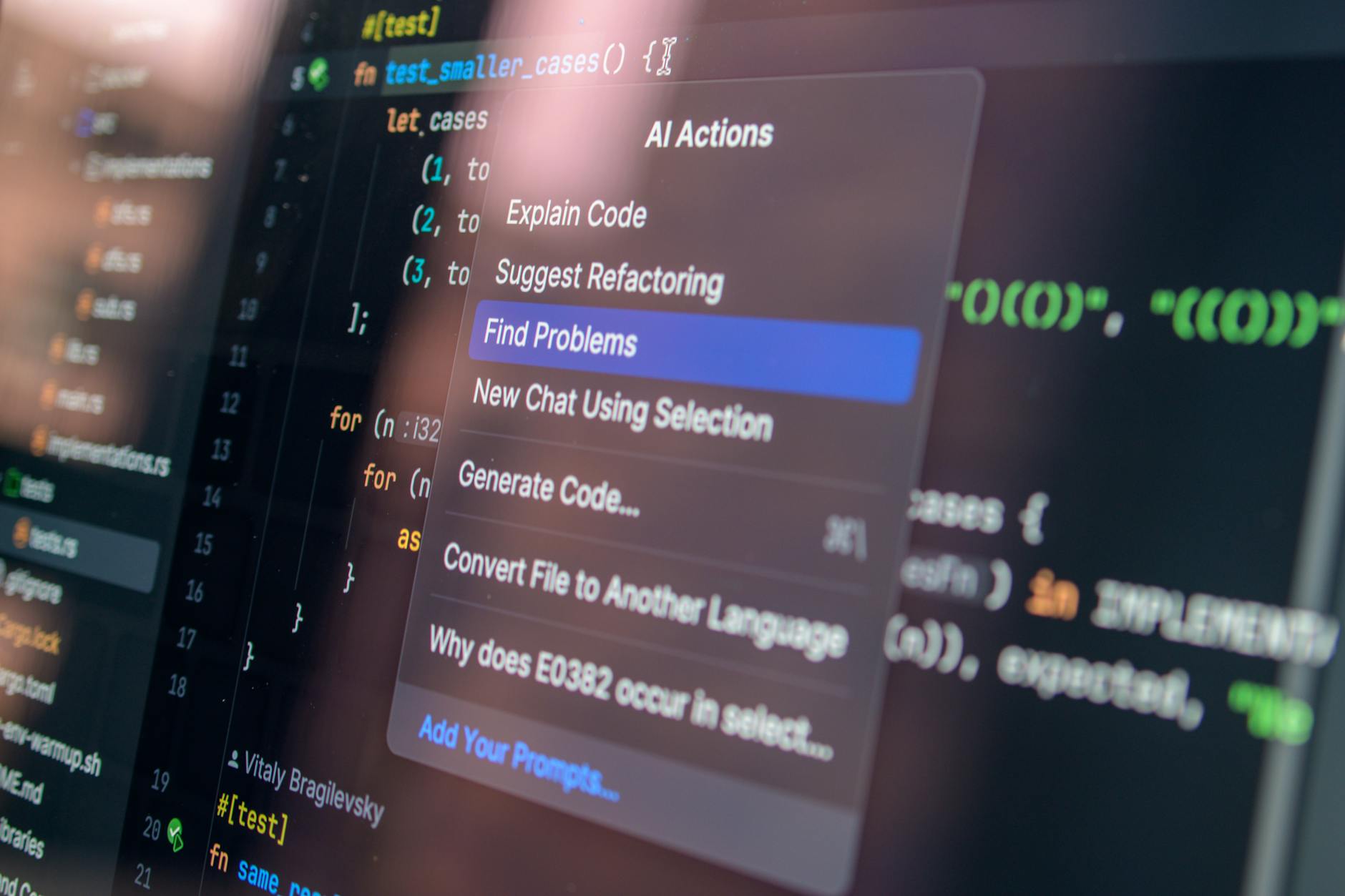
Photo by Daniil Komov on Pexels | Source
What you'll build (in 30 minutes)
- A single-page portfolio (hero, about, projects, contact)
- Responsive layout using Tailwind CSS
- Simple contact form (static, sends to a form provider or mailto)
- Deployed to Vercel on a free tier
Estimated time breakdown:
- Project setup: 5 minutes
- Generate layout with AI: 10 minutes
- Styling and content tweaks: 10 minutes
- Deploy: 5 minutes
Step 1 — Project setup (5 minutes)
- Open a terminal and create a new project with Vite (React) or a plain HTML template. If you want zero JS, pick Vite's "vanilla" template.
Command (vanilla):
npm create vite@latest my-portfolio -- --template vanilla cd my-portfolio npm install
- Open the folder in Visual Studio Code.
- Activate your AI assistant in VS Code (Copilot or Codeium extension).
Prompt to start in the assistant pane (paste exactly):
"Create a minimal responsive portfolio single-page HTML using Tailwind CSS. Sections: hero with name and tagline, about, projects (3 sample cards), contact form. Use semantic HTML and Tailwind utility classes. Keep code under 300 lines with comments."
Screenshot description: The AI assistant sidebar showing the prompt and a generated index.html preview. The preview includes semantic sections and Tailwind classes highlighted.
Step 2 — Add Tailwind quickly
Follow Tailwind's install steps (PostCSS-less method with CDN for speed) — use the CDN for this quick build so you stay under 30 minutes.
In your index.html header add:
Prompt for the AI if you prefer a build-integrated Tailwind (Vite + PostCSS):
"Show me the exact commands and config files to install Tailwind CSS with Vite (postcss), including tailwind.config.cjs and postcss.config.cjs. Keep commands copy/paste ready."
Screenshot description: Terminal output showing "npm install -D tailwindcss postcss autoprefixer" and the generated tailwind.config.cjs with content paths.
Step 3 — Generate the page with precise prompts (10 minutes)
Now use the assistant to create the page sections one-by-one. Break prompts down — AI works best with small, specific tasks.
Prompt 1 (Hero):
"Write an accessible hero section with a large name, short tagline, a circular avatar placeholder, and two buttons: 'View Projects' and 'Contact'. Use Tailwind classes for responsive spacing and a gradient background. Output only the HTML for this section."
Prompt 2 (About):
"Write an about section with a two-column layout on wider screens: left text with short bio (3 lines) and right list of skills as chips. Use Tailwind and semantic markup. Output only HTML."
Prompt 3 (Projects):
"Generate three project cards with image placeholders, titles, short descriptions, and two links: 'Live' and 'Source'. Make cards responsive and include hover effects using Tailwind. Output only HTML."
Prompt 4 (Contact):
"Create a contact form with name, email, message, and a submit button styled with Tailwind. Add HTML attributes for basic validation and include a note showing how to replace action with a form provider URL. Output only HTML."
As the assistant returns each snippet, paste them into index.html inside

Photo by Jakub Zerdzicki on Pexels | Source
Screenshot description: The VS Code editor with index.html open showing hero, about, and project sections; Copilot inline suggestions visible.
Step 4 — Content and polish (10 minutes)
Now refine copy and tweak styles using the assistant.
Refinement prompt examples:
- "Rewrite the hero tagline to sound friendly and professional for a junior frontend developer. Keep it under 10 words."
- "Make the project card descriptions more concise and emphasize technologies: React, Tailwind, Vite."
- "Add aria-label attributes for buttons and role="region" landmarks for sections."
Add a small nav that links to sections and a sticky header using Tailwind utilities. Ask the assistant:
"Generate a responsive sticky nav with links to #about #projects #contact. Keep markup accessible and include mobile hamburger button behavior using minimal vanilla JS."
Screenshot description: Browser preview (live server or Vite dev server) showing the responsive site; mobile and desktop layouts visible side-by-side.
Step 5 — Deploy in 5 minutes
- Initialize a git repo, commit, and push to GitHub.
git init git add . git commit -m "Initial portfolio"
create repo on GitHub and set remote
- Connect the repo to Vercel (or Netlify) and deploy from the GitHub repo. Both platforms have a free hobby tier: Vercel's hobby plan is free for personal projects; Netlify also offers a free plan.
Prompt to help create README and deployment steps:
"Generate a short README with project description, local run commands (npm install, npm run dev), and single-click Vercel deploy instructions."
Screenshot description: Vercel dashboard showing the new deployment status and URL. The live site loads with hero and project sections.
Tips to keep it under 30 minutes
- Use CDN Tailwind for prototype speed.
- Generate and paste one section at a time — smaller prompts = cleaner code.
- Keep images as placeholders (placekitten.com or unsplash source links) and swap later.
- Use GitHub Copilot inline suggestions for tiny edits to avoid re-prompting.
What you learned
- How to prompt an AI coding tool to scaffold real UI sections.
- How to combine Vite, Tailwind, and an AI assistant for fast prototyping.
- How to deploy quickly on Vercel/Netlify free tiers.
Next steps (Episode 3 preview)
In Episode 3 we'll connect a real form backend (using Formspree or a serverless function) and add analytics. If you liked this, return to Episode 1 to recap the Vibe Coding workflow.

Photo by Pixabay on Pexels | Source
Final notes
AI coding assistants can accelerate beginner workflows, but always review generated code for accessibility, security, and correctness. Use the prompts in this guide as templates — tweak wording and constraints to match your style.
Happy building! Drop your live site link in the comments — I love seeing beginner projects go live.
Frequently Asked Questions
Do I need to pay for an AI assistant to follow this tutorial?
No. Paid assistants like GitHub Copilot can speed up the process, but free alternatives such as Codeium or using an AI chat interface with copy/paste prompts will also work for this tutorial.
Can I use this portfolio for job applications?
Yes. A clean, accessible single-page portfolio is a great start for job applications. Replace placeholder content with real projects, links, and a professional photo before sharing.
How do I make the contact form actually send emails?
For a quick no-backend option, connect the form to Formspree, Getform, or use a serverless function (Vercel Functions) to forward submissions to email or a database.
What if the AI generates insecure or inaccessible code?
Always review generated code. Check for missing input validation, weak links, and accessibility attributes. Use linters and accessibility tools (axe, Lighthouse) before publishing.


